EUMETSAT infrastructure contains RX A6000 NVIDIA GPU cards. To employ the GPU, one need to provision one of the following flavors:
| Flavor name | vCPU | RAM | vGPU Type | vGPU RAM | SSD storage (GB) |
|---|---|---|---|---|---|
| vm.a6000.1 | 2 | 14 GB | RTXA6000-6C | 6 GB | 40 |
| vm.a6000.2 | 4 | 28 GB | RTXA6000-12C | 12 GB | 80 |
| vm.a6000.4 | 8 | 56 GB | RTXA6000-24C | 24 GB | 160 |
| vm.a6000.8 | 16 | 112 GB | RTXA6000-48C | 48 GB | 320 |
To use the GPUs:
- Provision new Centos or Ubuntu instance.
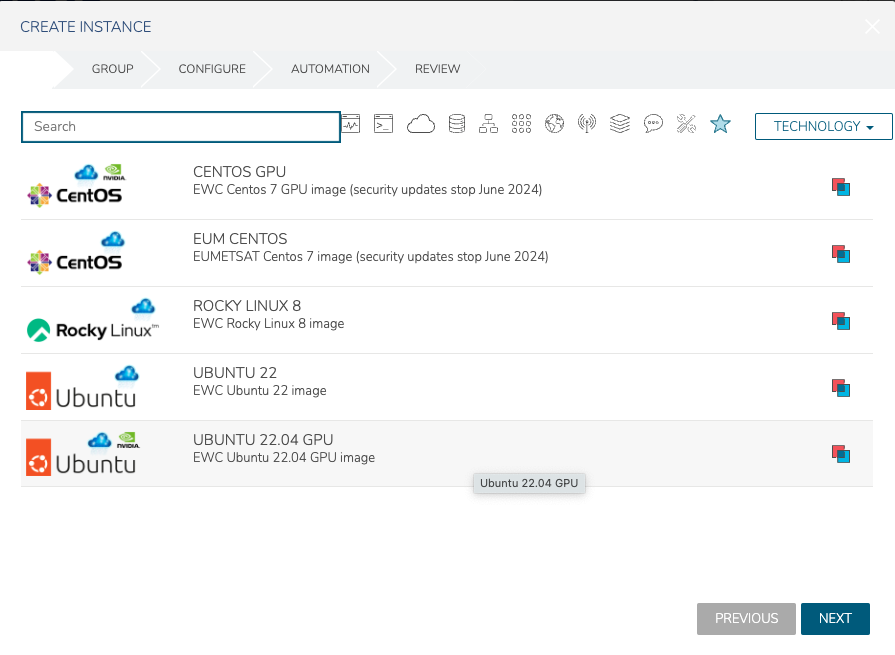
- Select layouyt ending with
eumetsat-gpu and one of the plans listed above. Beside that, configure your instance as preferred and continue deployment process.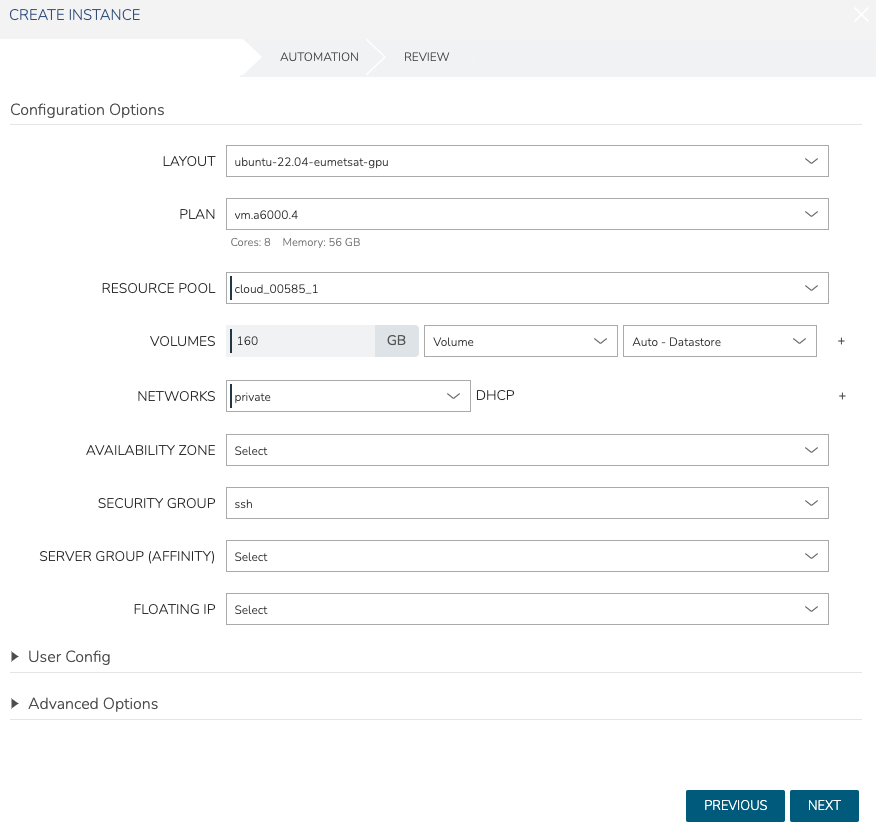
- Once VM is deployed, you can verify GPUs for example using
nvidia-smiprogram from command line (see below for confirming library installations and drivers).
Usage
Useful commands
You can see GPU information using nvidia-smi
[tervo@gpu-test-centos ~]$ nvidia-smi
Tue Apr  5 12:22:47 2022
+-----------------------------------------------------------------------------+
| NVIDIA-SMI 470.82.01    Driver Version: 470.82.01    CUDA Version: 11.4     |
|-------------------------------+----------------------+----------------------+
| GPU  Name        Persistence-M| Bus-Id        Disp.A | Volatile Uncorr. ECC |
| Fan  Temp  Perf  Pwr:Usage/Cap|         Memory-Usage | GPU-Util  Compute M. |
|                               |                      |               MIG M. |
|===============================+======================+======================|
|   0  NVIDIA RTXA6000-6C  On   | 00000000:00:05.0 Off |                    0 |
| N/A   N/A    P8    N/A /  N/A |    512MiB /  5976MiB |      0%      Default |
|                               |                      |                  N/A |
+-------------------------------+----------------------+----------------------+

+-----------------------------------------------------------------------------+
| Processes:                                                                  |
|  GPU   GI   CI        PID   Type   Process name                  GPU Memory |
|        ID   ID                                                   Usage      |
|=============================================================================|
|  No running processes found                                                 |
+-----------------------------------------------------------------------------+
NVIDIA tools are available in /usr/local/cuda-11.4/bin/. You can add them to PATH following:
export PATH=$PATH:/usr/local/cuda-11.4/bin/
Libraries
CUDA version is currently 11.4 which need to be the same with drivers and thus can't be changed. Tensorflow library compatibility is available at: https://www.tensorflow.org/install/source#gpu. We have tested that TensorFlow > 2.6.1 work.
Using Docker
If you want to use GPUs in docker, you need to take few extra steps after creating the VM.
Install Docker
In ubuntu:sudo apt install -y docker.io sudo usermod -aG docker $USER
In Centos:
sudo yum-config-manager \ --add-repo \ https://download.docker.com/linux/centos/docker-ce.repo sudo yum install docker-ce docker-ce-cli containerd.io sudo systemctl --now enable docker sudo usermod -aG docker $USER- Logout and login again
Install nvidia-container toolkit
Ubuntu:distribution=$(. /etc/os-release;echo $ID$VERSION_ID) curl -s -L https://nvidia.github.io/nvidia-docker/gpgkey | sudo apt-key add - curl -s -L https://nvidia.github.io/nvidia-docker/$distribution/nvidia-docker.list | sudo tee /etc/apt/sources.list.d/nvidia-docker.list sudo apt-get update && sudo apt-get install -y nvidia-container-toolkit sudo systemctl restart docker
Centos:
	distribution=$(. /etc/os-release;echo $ID$VERSION_ID) \
   && curl -s -L https://nvidia.github.io/libnvidia-container/$distribution/libnvidia-container.repo | sudo tee /etc/yum.repos.d/nvidia-container-toolkit.repo
sudo yum clean expire-cache && sudo yum install -y nvidia-docker2
sudo systemctl restart docker
Run GPU-compatible notebook. For example:
docker run --gpus all -it --rm -v $(realpath ~/notebooks):/tf/notebooks -p 8888:8888 tensorflow/tensorflow:latest-gpu-jupyter